10 bestMacbook Pro Dual Monitor Dockof November 2026
112M consumers helped this year.
20% off
1
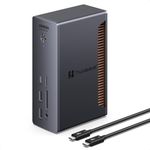
UGREEN Thunderbolt 5 Docking Station, 13-in-1 120Gbps Max Transfer TB5 Dock
UGREEN
9.9
2
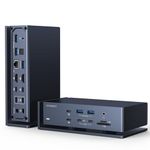
iVANKY FusionDock Max 1, 20-in-2 Thunderbolt 4 Docking Station Only for M1-M5 Pro/Max MacBook, Quad 6K or Dual 8K Display, 40Gbps Dock with 4 Downstream Thunderbolt 4 Ports, 100W, 2.5G LAN, SD 4.0
IVANKY
9.8
3
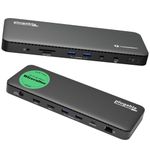
Plugable Thunderbolt 4 Dock with 100W Charging, Thunderbolt Certified, Laptop Docking Station Dual Monitor Single 8K or Dual 4K HDMI for Windows and Mac, 4X USB, Gigabit Ethernet (TBT4-UD5)
Plugable
9.7
4
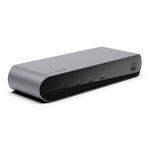
Belkin Thunderbolt 4 Dock Pro, Single 8K @ 30hz, Dual 4K Display Compatible Docking Station, 2 x Thunderbolt 4 Port, 2 x HDMI Port, 90W Power Delivery PD, Audio In/Out, For MacBook Pro, XPS, and more
Belkin
9.5
20% off
5
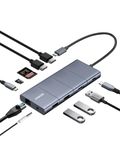
Anker USB C Hub, 11-in-1 Docking Station Dual Monitor, 10 Gbps USB-C and USB-A Data Ports, 4K HDMI and DisplayPort, 85W Power Delivery, 2 Data Ports, Ethernet, for XPS
Anker
9.4
OtherUp to 30% off
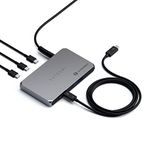
SATECHI 5-in-1 Thunderbolt 4 Slim Hub Docking Station with 8K or Dual 4K Display, 60W PD Charging, Three Thunderbolt 4 Downstream Ports and USB 3.2 Gen 2 – for MacBook Air & Pro, Laptop, PC and More
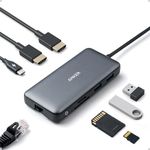
Anker Laptop Docking Station Dual Monitor, 8-in-1 USB C Hub, 4K Dual Monitor with 2 HDMI, 1 Gbps Ethernet Hub, 85W Power Delivery, SD Card Reader for MacBook Pro, XPS and More (Charger not Included)
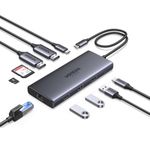
UGREEN Laptop Docking Station Dual Monitor, Revodok Pro 210 USB C Hub (10-in-1) with Dual 4K@60Hz, Single 8K, 100W PD, 1Gbps Ethernet, 4x 5Gbps USB-A/C Data, SD/TF, Aluminum USB-C Dock for Dell, HP
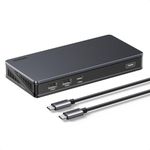
UGREEN Laptop Docking Station, 9-in-1 Dual 4K@60Hz Dock with DisplayLink
6

StarTech Hybrid USB-C USB-A Universal Dual 4K HDMI DP Dock for MacBook, 60W
StarTech
9.2
24% off
7
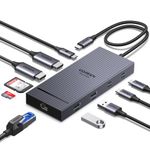
UGREEN Laptop Docking Station Dual Monitor, Revodok Pro 10-in-1 USB C Hub, Dual 4K@60Hz with 2 HDMI, 3x 10Gbps USB-A/C, 100W PD, Ethernet, SD/TF, Aluminum USB-C Dock for Dell, HP, ThinkPad Laptops
UGREEN
9.0
8
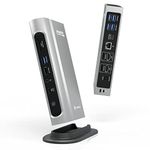
Plugable 16-in-1 Thunderbolt 4 Dock – Dual 4K Monitors for M4/M5 MacBook Air/Pro, 100W Charging, 2X HDMI, 2X DisplayPort, 2.5G Ethernet, 7X USB, MicroSD/SD Card Reader, Windows & USB4 Compatible
Plugable
8.8
13% off
9
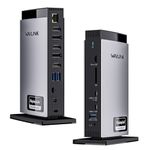
WAVLINK Displaylink Docking Station Triple Display 4K60Hz, 3 HDMI, 2DP
WAVLINK
8.6
10
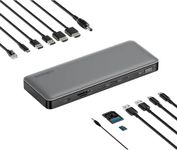
Kensington SD5760T Thunderbolt 4 Docking Station, Dual Monitor 8K/4K, Micro SD Card Reader, 96W Power Delivery, 2 x HDMI, Ethernet, USB-C 3.2 & 4 x USB-A Ports (K34110EU)
Kensington
8.4
Related Reviews You Might Like

A Guide to Selecting the Best Macbook Pro Dual Monitor Dock
Choosing the right dual monitor dock for your MacBook Pro can significantly enhance your productivity and streamline your workflow. A dual monitor dock allows you to connect multiple external displays to your MacBook Pro, providing you with more screen real estate for multitasking, gaming, or professional work. When selecting a dual monitor dock, it's important to consider several key specifications to ensure compatibility and performance that meets your needs.
Compatibility
Compatibility refers to whether the dock is designed to work with your specific model of MacBook Pro. This is crucial because not all docks are universally compatible with every MacBook Pro model. To ensure compatibility, check the dock's specifications to see if it supports your MacBook Pro's year and model. If you have a newer MacBook Pro with USB-C or Thunderbolt 3/4 ports, make sure the dock supports these connections. Compatibility ensures that the dock will function correctly and provide the necessary power and data transfer speeds.
Number of Ports
The number of ports on a dual monitor dock determines how many devices and peripherals you can connect simultaneously. This includes HDMI, DisplayPort, USB-A, USB-C, Ethernet, and audio ports. More ports offer greater flexibility and convenience, allowing you to connect multiple monitors, external hard drives, keyboards, mice, and other accessories. Consider your specific needs: if you require multiple monitors and several peripherals, opt for a dock with a higher number of ports. If you only need to connect two monitors and a few devices, a dock with fewer ports may suffice.
Resolution Support
Resolution support indicates the maximum display resolution that the dock can handle for connected monitors. Higher resolution support means better image quality and clarity. Common resolutions include Full HD (1080p), 4K, and 5K. If you need sharp and detailed visuals for tasks like video editing, graphic design, or gaming, choose a dock that supports higher resolutions like 4K or 5K. For general office work or browsing, a dock that supports Full HD may be sufficient. Ensure the dock can support the resolution of both monitors simultaneously.
Power Delivery
Power delivery refers to the dock's ability to charge your MacBook Pro while connected. This is important because it eliminates the need for a separate charger and keeps your laptop powered during use. Power delivery is measured in watts, with higher wattage providing faster charging. Look for docks that offer at least 60W of power delivery to ensure your MacBook Pro stays charged even under heavy use. If you use power-intensive applications or have a larger MacBook Pro model, consider docks with higher wattage for more efficient charging.
Build Quality
Build quality refers to the materials and construction of the dock. A well-built dock is durable, reliable, and can withstand regular use. Look for docks made from high-quality materials like aluminum or sturdy plastic, which offer better heat dissipation and longevity. Build quality also affects the dock's stability and the security of connected devices. If you travel frequently or use your dock in different environments, prioritize build quality to ensure it can handle the wear and tear of daily use.
Ease of Use
Ease of use encompasses the dock's setup process, user interface, and overall convenience. A user-friendly dock should be easy to set up, with clear instructions and plug-and-play functionality. Consider docks that offer intuitive interfaces and straightforward connectivity options. If you're not tech-savvy, look for docks with minimal setup requirements and automatic configuration. Ease of use ensures that you can quickly and efficiently connect your monitors and peripherals without hassle.

Best Reviews Guide Newsletter
Get exclusive articles, recommendations, shopping tips, and sales alerts
Sign up for our newsletter to receive weekly recommendations about seasonal and trendy products
Thank you for subscribing!
By submitting your email address you agree to our Terms and Conditions and Privacy Policy